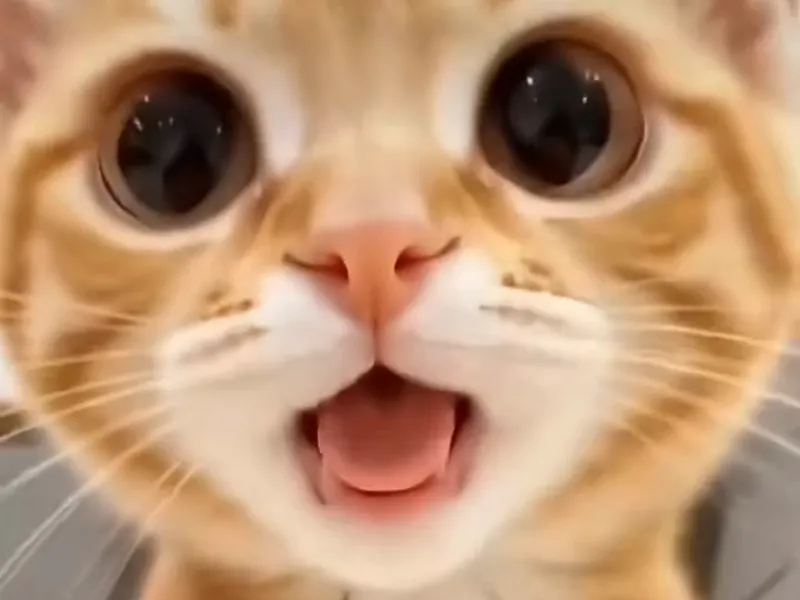
The most common shaking head AI video problems are a face that drifts, a head that nods instead of shaking, eyes that never snap open, a squint that never happens, a wrong-looking mouth, extra animals or objects, a clip that runs out of step with the sound, and a render that fails or is refused. On AI Shaking Head every one of them is fixed the same short way: use a different photo, pick another template, or choose a higher tier. There is no prompt box, so you never fix a clip by adding a line of text.
Key takeaways
- Your levers are the photo, the template, the tier and a new render. That list covers all eight problems below.
- A sharp photo with the face large in the frame and both eyes visible fixes more than any other change, and it costs no credits.
- Fast, Pro and Ultra hold a face and a sharp eye snap more closely than Standard. At 720p, Standard costs 10 credits, Fast 17, Pro 20 and Ultra 37.
- Video models vary from run to run, so a second render of the same photo can look different. That is normal.
- A render that fails returns its credits automatically. A finished video you dislike counts as a success, and there are no refunds, so change something before you render again.
- AI Shaking Head is independent and not affiliated with TikTok, CapCut or ByteDance.
To start over with a better photo, open the generator. To learn why these problems happen, read why copied shaking head prompts fail.
What should I check before I blame the video?
Check the photo and the template first. Most weak clips trace back to one of the two, and both are free to change. Before you spend credits on another render, run through this short list:
- Is the face large in the frame? A pet or person that fills a good part of the photo gives the generator more to copy than a small figure across a room.
- Are both eyes clearly visible? The whole trend is built on eyes shutting and snapping open, so eyes hidden by fur, glasses, a hat brim or shadow weaken it.
- Is the face turned toward the camera? A front view or a slight angle works best. A profile or an overhead shot gives a stiff shake.
- Is the photo sharp? A blurry or heavily compressed picture gives the model little to hold.
- Does the template match the subject? Smug Cat is for cats, Wide-Eyed Kitten for kittens, Dog Head Shake for dogs, Farm Calf for calves, Selfie Head Shake for yourself and Baby Giggle for your own baby. Any Pet Any Place covers the rest.
Also remember what the trend should look like, so you can judge your clip fairly. The original runs about 10 seconds and repeats one loop about three times. Each loop is about 3.6 seconds: a smug squint with the eyes shut, a snap where the eyes pop open, a quick wide-eyed side-to-side shake with the tongue tip out, and a return to the squint. If your clip has those beats, it is on target even when it is not identical to the viral cat.
1. Why does the face look like a different pet or person?
The face drifts because every frame after the first is generated, and the head turn and the expression changes ask the model to draw angles your photo never showed. The fur pattern, the eye colour or the shape of the ears can slide toward something more generic. It is called identity drift, and viewers who know the subject notice it at once.
Fix:
- Use a different photo: sharper, front-facing, with the face large in the frame and even light.
- Remove clutter. A photo with one subject gives the model one face to hold.
- Choose a higher tier. Pro (20 credits at 720p) and Ultra (37) hold a face more closely than Standard (10).
Long fur, dark fur in dim light and busy patterns are the hardest for any tier, so give those subjects the best-lit photo you have.
2. Why does the head nod or tilt instead of shaking?
The head nods or tilts when the motion comes out as a common movement instead of the side-to-side "no" shake of the trend. The result is a head that bobs, sways or tilts, which is movement but not the meme.
Fix:
- Pick another template. The head shake is built into each one, and a template made for your kind of subject usually handles the turn better. A dog photo in Dog Head Shake often does better than the same photo in a generic template.
- Use a photo where the head is level and facing forward. A head already tilted in the photo tends to stay tilted.
- Move up a tier if the second template nods as well.
3. Why do the eyes open slowly instead of snapping?
The eyes open slowly because video models like smooth motion, and the snap is a single-frame event. The strongest beat of each loop, at roughly 1.2 to 1.5 seconds, is the eyes going from shut to wide open at once. A gradual opening is realistic and takes the surprise out of the joke.
Fix:
- Choose a photo with clear, open, fairly large eyes. They give the model a strong open state to aim for.
- Pick the template made for the face: Wide-Eyed Kitten has the biggest eyes to work with.
- Choose a higher tier. A second render of the same photo can also snap better, because runs vary.
4. Why is there no squint, or why are the eyes half closed?
The squint is missing when the eyes are hidden in the photo or when the face has little to close. The first part of every loop is a pair of eyes squeezed shut with a closed-mouth grin. If the photo has sunglasses, heavy fur over the eyes, a hat pulled low or a deep shadow, the model has no clear eyes to shut. If the eyes are half closed in the photo, there is nothing to snap open from.
Fix:
- Use a different photo where both eyes are open, visible and well lit.
- Take off sunglasses or lift hair or a hat for selfie photos.
- For an animal with an unusual face, try Any Pet Any Place, which keeps the background and animates the animal where it is. Animals whose eyes do not close like a mammal's, such as fish and snakes, may give odd results in any template.
5. Why does the mouth, tongue or face look wrong?
The mouth looks wrong when the model has to invent a feature your photo hides. The trend's wide-eyed beat includes a tongue tip out and a stare. A photo with a closed mouth, a muzzle in shadow or a face partly covered leaves the model to guess, and a guess can look like a stretched mouth, a double chin or a smear.
Fix:
- Use a photo where the whole face is visible and lit, mouth included.
- Pick another template, because each one frames the face a little differently.
- Render once more on a higher tier if the shape is nearly right but a little rubbery.
Do not read this as a problem with your pet. Faces that are not shown in the photo are the model's best guess, and a better photo removes the guess.
6. Why do extra animals, hands or objects appear?
Extra things appear when the photo contains more than one subject or a crowded scene. A second pet, a person's arm at the edge of the frame or a toy next to the face can be copied, moved or merged into the main subject as the head shakes. The model treats the picture as one scene, so a stray paw can end up attached to the wrong body.
Fix:
- Crop or retake the photo so that only the subject is in frame.
- Use a plain or tidy background where you can. If you want to keep your own room or garden, use Any Pet Any Place, which is designed to animate the animal in front of the background you give it.
- For a pair of animals, make two clips from two photos instead of one clip from a photo of both.
7. Why does the loop run out of step with the sound?
The loop runs out of step because the timing of a generated clip is never exact. The original sound is tied to the original rhythm of about 3.6 seconds per loop and about three loops in 10 seconds. A run that spends longer in the squint, or fits only two and a half loops, drifts from the sound even if every frame looks fine. AI Shaking Head adds the trend's original sound after rendering, so the sound itself is correct; what moves is the picture.
Fix:
- Render again. Rhythm varies from run to run, and the next take can fit the loops better.
- Pick another template. A different template can land the beats differently on the same photo.
- Choose a higher tier if the beats are loose on Standard.
A good take is a better answer than a patched one, so do not spend time nudging audio by hand.
8. What if the render fails or the photo is refused?
A failed render returns its credits automatically, so a failure costs nothing. A render can fail for technical reasons, and a photo that does not fit the template's rules may not go through.
Fix:
- Try the render again after a short wait. A failed render returns its credits, so there is no cost to trying.
- Use a different photo if the same one fails twice.
- For Baby Giggle, remember that only a parent or legal guardian may upload a photo of their own child, fully clothed. For the other templates, use your own pet, your own face or a subject you have the right to use.
- If it still does not work, write to support@aishakinghead.com and say which template and photo type you used.
A reminder on the other side: a render that finishes but looks wrong counts as a successful render, so its credits are spent. That is why the checks at the top matter, and why the next section is about choosing a tier before you pay.
Which tier should I choose, and what does it cost?
Choose Standard to test and a higher tier when the problem is a face, an eye snap or a wobble. Standard at 720p is 10 credits. Fast at 720p is 17, Pro at 720p is 20 and Ultra at 720p is 37. Pro and Ultra also offer 1080p at higher credit costs.
A sensible order of attempts saves credits:
- Fix the photo (free).
- Try one more template that suits the subject.
- Move up one tier and render once.
There is no free tier. Credits come in packs and never expire. The smallest pack, Single, is $6.99 for 10 credits, one Standard 720p video. Trio gives 30 credits, which is three Standard videos, and the Duo Pack gives 50. The pricing page lists the packs, and the templates page shows all seven templates with photo tips. A render takes about three to four minutes, uploaded photos are deleted within 24 hours, and finished files can be downloaded for 24 hours.
When the clip is ready, read how to post your shaking head video on TikTok and Reels. For the background on the trend, see the shaking head trend page and the tutorial.
Frequently asked questions
Should I change the photo or render again first?
Change the photo first. AI Shaking Head has no prompt box, so the photo decides most of the clip and costs no credits to improve. Render again first only when the photo is already sharp and the flaw looks random, such as a head that tilts once in one run.
Which tier fixes a drifting face?
Pro and Ultra on AI Shaking Head hold a face more closely than Standard, so try them when the face changes during the shake. At 720p, Pro costs 20 credits and Ultra costs 37, against 10 for Standard. A sharp, front-facing photo still matters most.
Do I pay again when a render fails?
No. AI Shaking Head returns the credits automatically when a render fails. A render that finishes but looks wrong counts as successful, so a second try spends credits again. Credits never expire, and there are no refunds beyond failed renders.
Why does my video look soft or low quality?
AI Shaking Head gives a softer picture on the lowest settings, so it usually helps to use a sharp, large photo and a higher tier. Standard at 480p costs 5 credits and is best for quick tests. Move to 720p or a higher tier for a clip you plan to post.
Can I fix a clip without making a new one?
No. AI Shaking Head does not edit a finished clip, so the fix is a new render with a different photo, template or tier. Download the version you like within 24 hours, because finished files are deleted after that. The cheapest fix is a better photo.